Tauri-Powered System-Wide Integration
Universal dictation for Windows
Fluence for Windows runs lightweight in your system tray. Bind a global hotkey shortcut to start recording, speak naturally, and let Fluence type context-aware, fully-punctuated transcription into VS Code, Chrome, Word, or any active editor instantly.
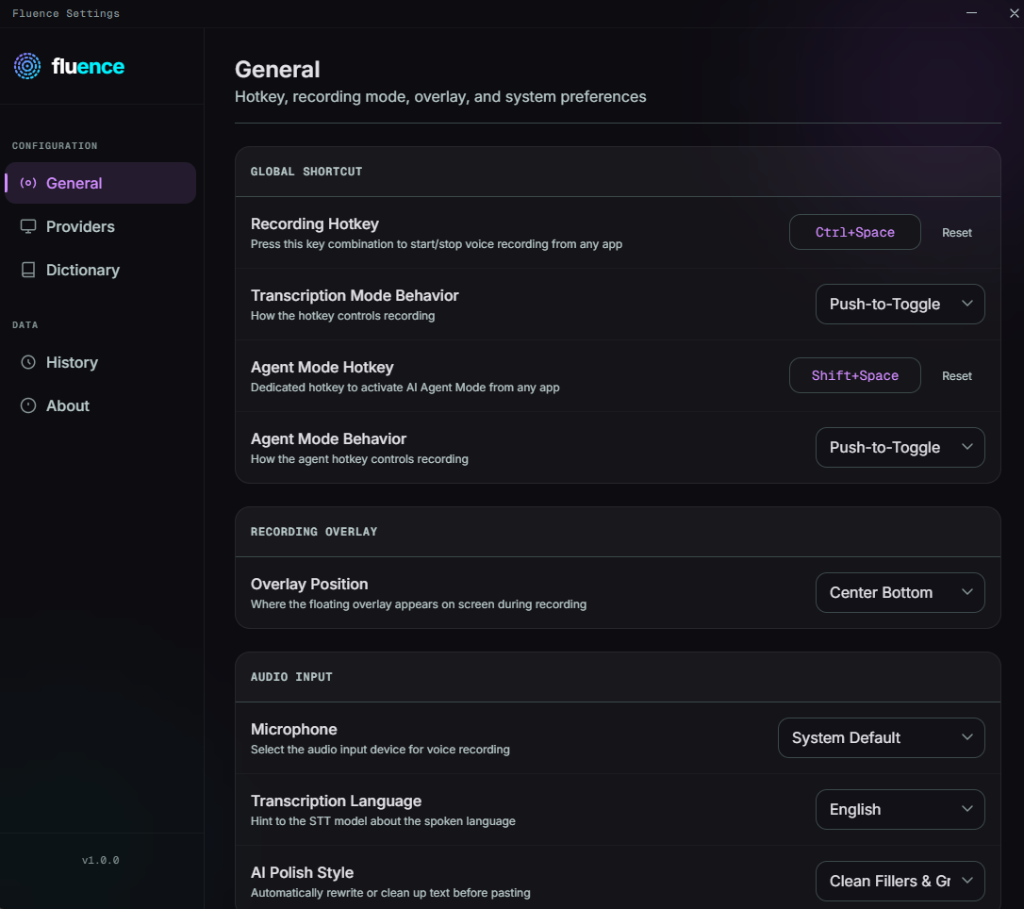
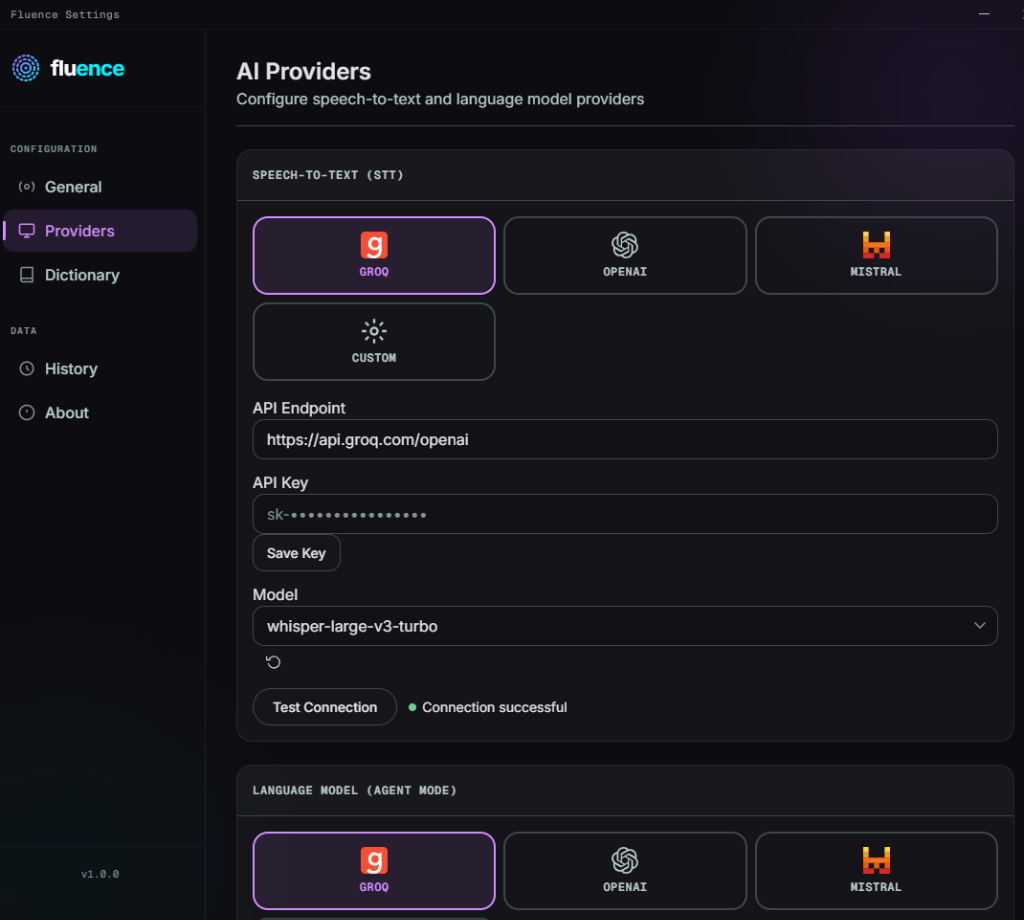
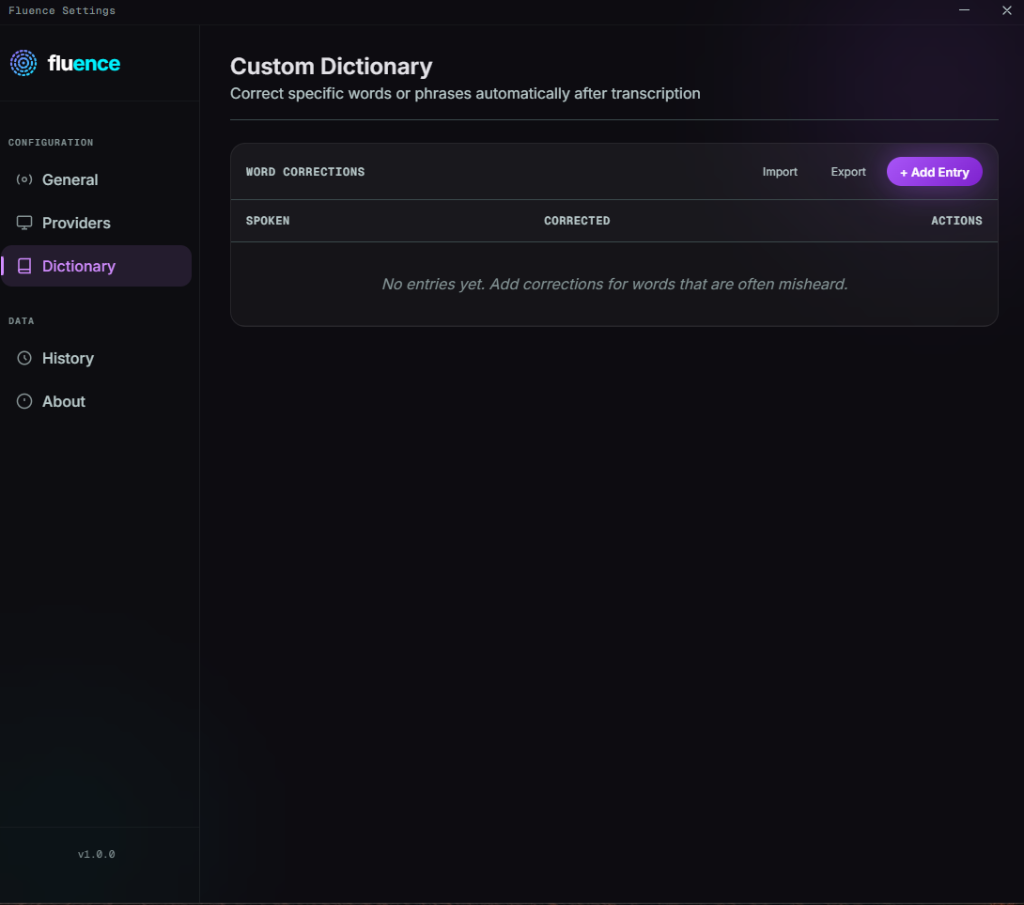
fluence_demo.txt
Click "Try Hotkey Dictation" in the sidebar to simulate typing in any Windows app...
Ctrl + Shift + Space
Press Ctrl+Shift+Space or use the sidebar action to trigger global hotkey voice typing
fluence
Windows Setup Guide
Learn how to configure the desktop app or test the setup below
Desktop Installation Guide
- Download & Run: Get the latest `.exe` installer or `.msi` package from GitHub Releases and run the installation.
- System Tray Icon: Once installed, Fluence runs in the system tray. Right-click the tray icon to access Settings, view logs, or close the app.
- Global Shortcuts: The default hotkey is Ctrl + Shift + Space. You can press this inside any application (Word, Discord, Chrome, IDEs) to trigger dictation.
- API Key: Paste your Groq or OpenAI key. It will be stored securely inside the native **Windows Credential Manager** with zero telemetry.
- Overlay Indicator: A sleek wave pill appears on the bottom right (or customized position) of your screen during recording. Note: The Windows overlay contains no check or close buttons to prevent focus loss.
- Offline SenseVoice: Download the weights inside settings to run fully local offline transcription without internet connectivity.